YOU NEED:
A clear wall space of 3-5 feet wide without any picture frames or furniture.
Quiet / private space that is well lit and allows you to step approximately 10 feet away from your device when needed.
A laptop (recommended), tablet, or smartphone with a camera (make sure it is fully charged or plugged in).
Arrive a recommended 10 min early to class to zap any tech challenges (you can do it! and I am here to help!) and settle in.
Bluetooth Headphones are helpful but not required. The audio in your device is fine!
Optional Props:
Yoga mat (if you have one)
1 or 2 chairs (without wheels)
Pillows and blankets
Yoga strap (or something similar like a belt to a robe or dog leash)


A. Download zoom on your laptop now to prepare for the session (recommended)
1. Go to https://zoom.us/download
2. Click on DOWNLOAD.
3. Zoom App will download to your computer.
4. Click on the file that was downloaded and follow the installation instructions prompted. You don’t need to create an account.
Continue with the next steps 10 minutes before the session
5. I will send you a Zoom link via email at least 15 min. before our session. Simply click the link.
6. Depending on your default web browser, you may be prompted to open Zoom. Click on Allow / Open Zoom.


7. Once you are inside the session please click on “Call using Internet Audio” or “Join With Computer Audio”. You are all set!
B. Download zoom on your laptop later.
It is 10 min. before the class and you are scrambling to get it ready, here is how you can get set up.
1. I will send you a Zoom link via email at least 15 min. before our session. Simply click the link.
2. Zoom will start downloading to your computer.
* if you are really last minute you can cancel the download and try to launch it on the browser
3. Click on the file that was downloaded and follow the installation instructions prompted. You don’t need to create an account.

4. Once the installation is complete, Zoom will automatically join you to the meeting. You will then be prompted with a similar screen to the one on the right hand side. Please, click on “Join With Computer Audio”.

5.You are all set!
C. iPad / Tablet (not recommended)
1. Search and download the ZOOM app, you can download it from the App Store (iOS) or Google Play Store (Android).

2. I will send you a Zoom link via email at least 15 min. before our session. Simply click the link 10 min. before the class.
3. The Zoom app will open up. Depending on your settings it might ask you if you want to join with or without video.
4. Once you are inside the session please click on “Call using Internet Audio” or “Join With Computer Audio”.
5. You are all set!
Tech Troubleshooting
If my SOUND doesn’t work:
Remember, there is a chat box. Type in there and let me know.
Make sure your volume is up (not muted). Look on your Zoom screen and make sure there is not a red line through your microphone. If so, click it so it disappears

If you know how, you can go to your settings and make sure it is not muted and mic and sound (speakers or headphones) are on. (I have a Mac so I usually go to the apple icon, click “system preferences” and click “sound.”)
If it still doesn’t work, I may be available to call you and talk you through it.
If not, Click “end meeting” or just X out of the meeting. Go back to the link I sent you to get into the class and click it again.
When you come back into the room, make sure you click “join audio” if prompted. Also, recheck to see if the icon of the mic has the red line through it. If it does, click it to Unmute.

If that still doesn’t work, restart your computer or device and try one last time.
If my VIDEO doesn’t work:
Look on your Zoom screen (probably bottom left of your screen) and make sure there is not a red line through your video. If so, click it so it disappears.
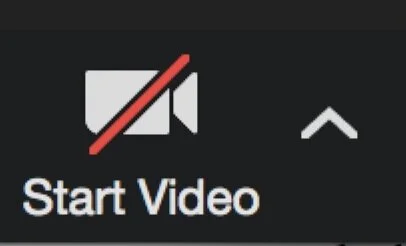
Look to see if your camera looks to be on- usually it has a red light. If not, your camera is probably not on.
Click “end meeting” or just X out of the meeting. Go back to the link I sent you to get into the class and click it again.
When you come back into the room, make sure that there is not a red line through the camera icon. If there is, click it so it disappears.